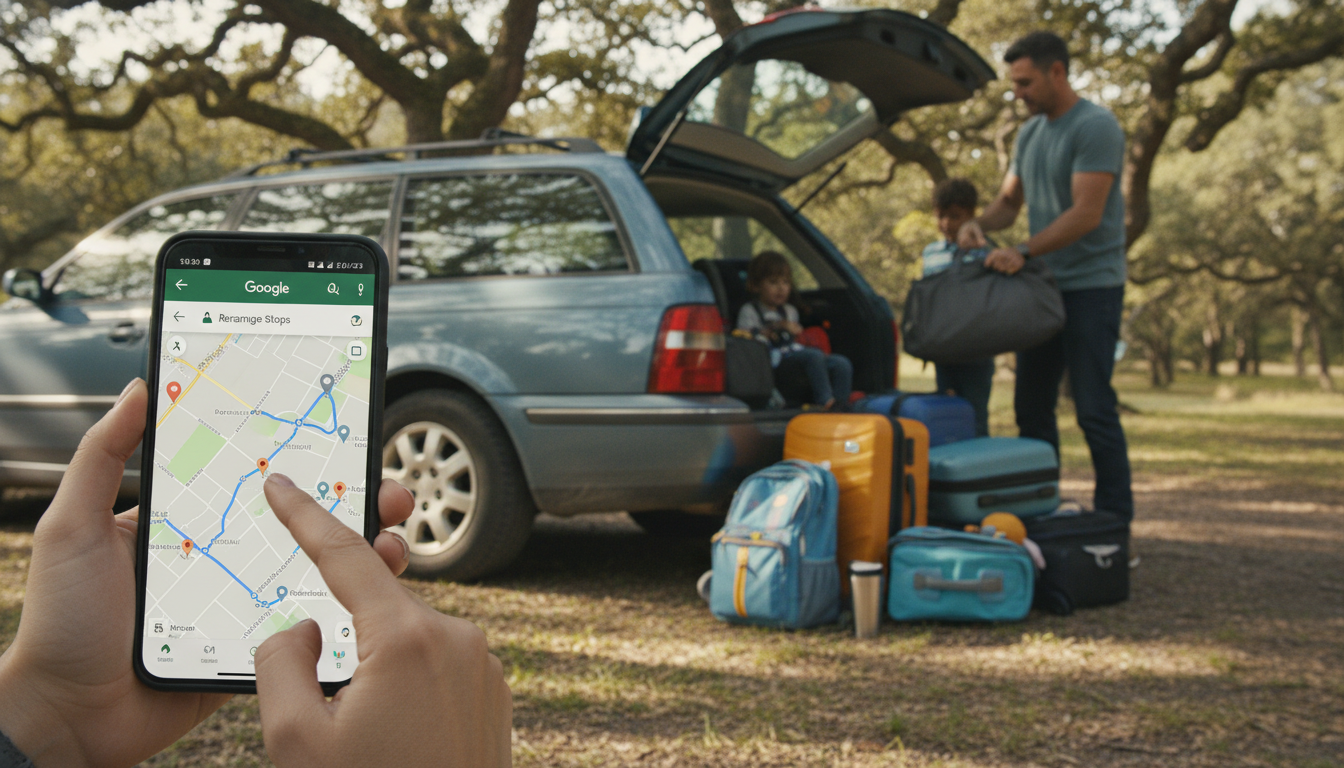
Google Maps lets you build a route with multiple stops, then change the order anytime to match your schedule. You can do this on both mobile and desktop, and it’s especially useful for errands, road trips, or multi-drop deliveries.
1) Open Google Maps and search your first destination. Tap Directions. 2) Confirm your start point (usually “Your location”). 3) Tap the three dots (top right) and choose Add stop. 4) Enter the next destination; repeat Add stop to include more locations. 5) Tap Done to see the full route.
Google Maps typically allows up to 10 stops total (including your start). If it won’t add more, you’ll need to split your trip into two routes.
1) Go to Google Maps in a browser and click Directions. 2) Enter your start and end locations. 3) Click + Add destination to insert additional stops. 4) Keep adding destinations until your route is complete.
On mobile: After you’ve added stops, open the stop list and press-and-hold the handle (stacked lines) next to a stop, then drag it up or down. The route recalculates automatically.
On desktop: In the left panel, drag a destination up or down to reorder it. You can also drag the route line on the map to force a preferred road, but that’s separate from reordering stops.
If you want to keep your plan handy, share the directions link or send the route to your phone. For more ways to organize stops and keep trip planning simple, see the full guide: https://azimuna.com/guide-google-maps-trip-planning-stress-free-route-lists/.
Google Maps usually supports up to 10 stops total, including your starting point. If you need more, split the itinerary into multiple routes or save separate segments.













Leave a comment