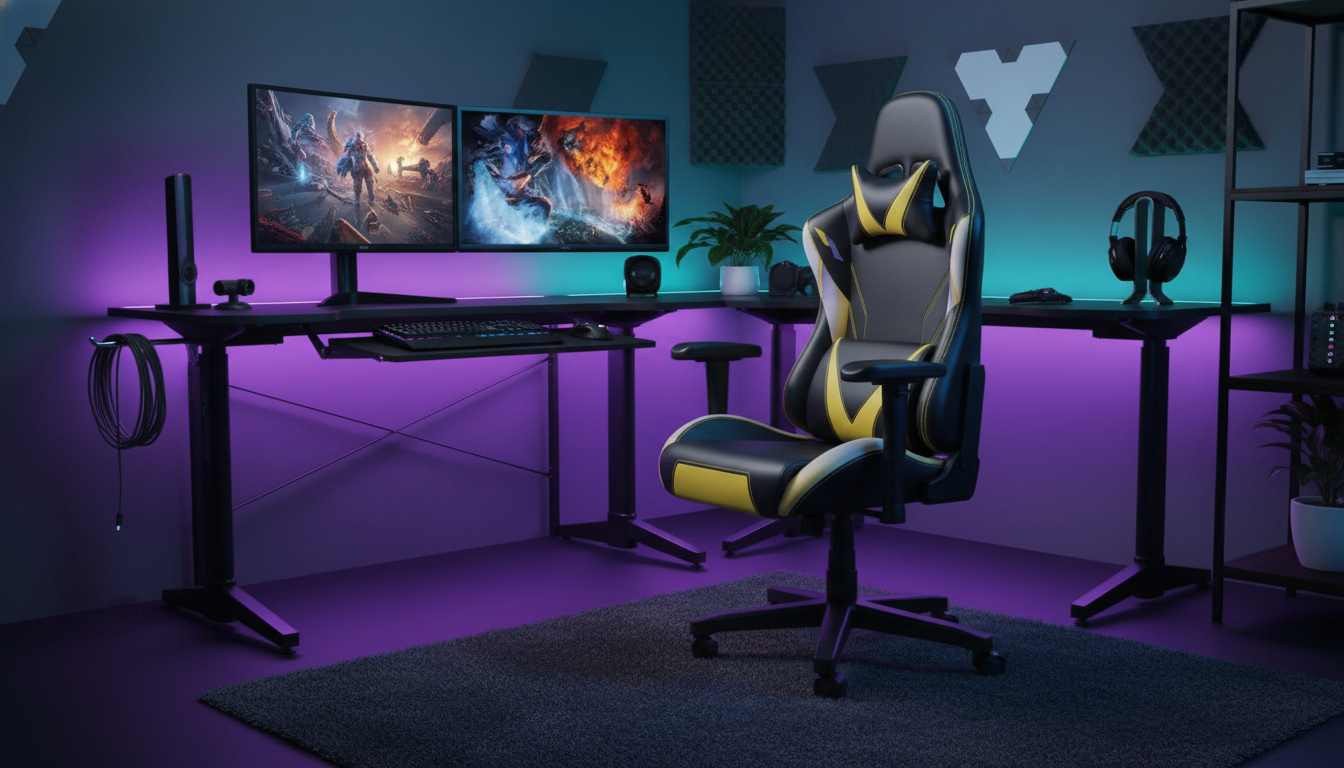
Long gaming sessions and desk work demand a chair that supports posture, reduces pressure points, and adapts to different body sizes and setups. An ergonomic gaming chair with adjustable armrests and lumbar support helps maintain a neutral spine, keeps shoulders relaxed, and improves comfort whether using a keyboard and mouse, a controller, or switching between both.
If you’re upgrading a battlestation or refining a work-from-home setup, the right adjustments can make the difference between feeling fresh after a session and feeling worn down by tension in the neck, shoulders, or lower back.
“Ergonomic” isn’t about a racing-style silhouette or extra padding alone—it’s about how well the chair supports healthy alignment and lets you change positions throughout the day.
For deeper workstation guidance, OSHA’s Computer Workstations eTool and Cornell’s office ergonomics resources are practical references for aligning chair, desk, and monitor height.
Armrests are often the make-or-break feature for desk gaming, streaming, and creative work. When positioned well, they offload the shoulders and help keep your hands steadier—especially helpful for fine mouse movements or long typing sessions.
A quick test: when your hands are on the keyboard or controller, your shoulders should feel “dropped” (not lifted), and your wrists shouldn’t be forced to bend up or down just to reach your inputs.
Lower-back fatigue often comes from gradual slouching. Lumbar support helps preserve the natural inward curve of the lumbar spine, making it easier to sit upright without bracing with your core all day.
NIOSH’s ergonomics overview explains how fit and posture relate to discomfort and musculoskeletal strain over time: NIOSH Ergonomics and Musculoskeletal Disorders.
Even a premium chair can feel “wrong” if the setup is off by an inch or two. Use these adjustments as a simple order of operations.
Small refinements add up. If your forearms feel “floaty,” raise the armrests slightly. If you feel pressure behind the knees, shorten the seat depth or lower the seat a touch.
Use the quick reference below to match chair adjustments with common comfort goals. Aim for adjustability that matches the desk height and primary input method (keyboard/mouse vs controller).
| Feature | Best for | How to set it | Comfort benefit |
|---|---|---|---|
| Adjustable armrests | Keyboard/mouse aiming, streaming, office tasks | Elbows close to body; shoulders relaxed; forearms supported | Less shoulder/neck strain and steadier hand control |
| Adjustable lumbar support | Long sessions, lower-back fatigue | Position at the small of the back; moderate pressure | Reduced slouching and improved spinal alignment |
| Recline + tilt | Breaks between matches, watching content | Alternate upright and reclined postures during the day | Less static loading and improved comfort over time |
| Seat height adjustment | Any setup with a desk or table | Feet flat; knees around 90–100 degrees | Better circulation and lower-leg comfort |
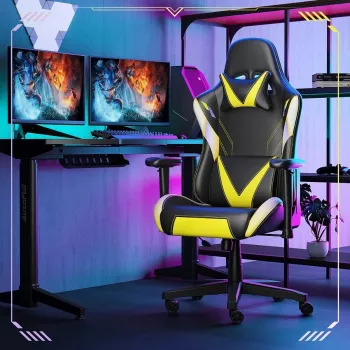
Ergonomic Gaming Chair with Adjustable Armrest and Lumbar Support is designed for adaptable arm positioning and lower-back support during extended sessions, making it a strong match for users who switch between focused upright play and relaxed recline breaks.
For a more organized setup around your desk—especially in multipurpose rooms—consider storage that keeps peripherals and accessories off the floor and within reach, like the Modern Minimalist Ash Wood Wardrobe with Artistic Glass Sliding Doors.
Yes—if it supports neutral posture and offers meaningful adjustability (especially armrests, lumbar support, seat height, and recline/tilt) so the chair fits the user and desk setup.











Leave a comment